
Overview
The Allocation screen is where you match open sales order lines to the specific inventory lots that will fill them. Allocating before picking means every shipment carries the right lot, harvest and vendor details for traceability, and your team can see at a glance which orders are covered and which are short.
Use this screen if you manage inventory and/or handle customer orders. It replaces the previous allocation workflow, e.g. allocating line by line inside each sales order.
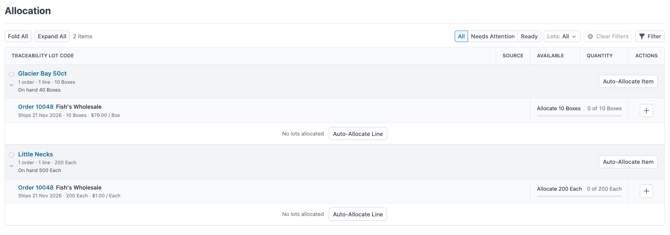
Screen Layout
The screen groups open order lines by item, so every order for one product sits together beside how much of it you have on hand. Each item expands into its order lines, and each line into the lots allocated to it.
Toolbar
|
Control |
What it Does |
|---|---|
|
Fold All / Expand All |
Collapses or opens every item group. The count beside them shows how many items are listed. |
|
All / Needs Attention / Ready |
Shows every item, only items with lines still to allocate, or only items fully allocated for open sales orders. |
|
Lots: |
Shows packed or allocated lots only, or both. |
|
Filter |
Narrows the list of open orders by customer, item, or department. |
|
Clear Filters |
Removes every filter you've set. |
Allocate a Line by Hand
- Click Needs Attention to see only items with lines still to allocate.
- Find the item, then the order line you want to fill.
- Click + in the Actions column of that line.
- Choose a lot and enter the quantity to take from it.
- Repeat until the Quantity column reads the full amount, for example 10 of 10 Boxes.
Auto-Allocate Several Lines
- Auto-Allocate Line (under an order line) fills just that line.
- Auto-Allocate Item (on the item row) fills every open line for that item.
BlueTrace picks lots using FIFO. Check the lots it chose before the order is picked, especially for customers with lot or harvest-date requirements. If you have transformations set up, the rules will still apply here.
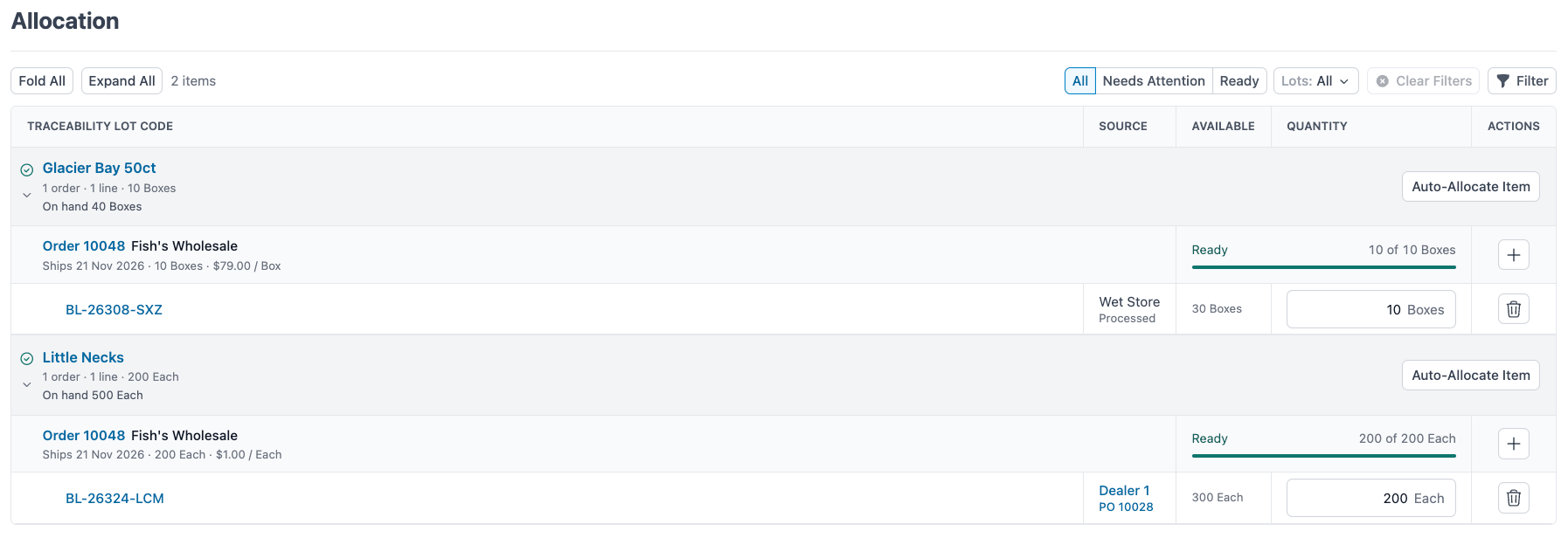
Use Cases:
- This screen is helpful for managing oversells. You can easily see how much product has been allocated and who it's been allocated to. You can make substitutions and decide which customers receive a limited product.