
Setting Up Item Transformations in BlueTrace
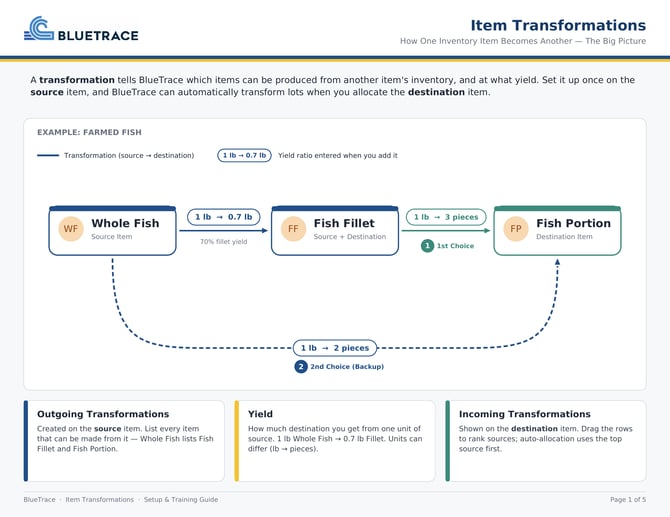
Transformations let BlueTrace turn one item’s inventory into another, such as cutting a whole fish into fillets or portions. Once they’re set up, BlueTrace can pull from the right inventory automatically when you allocate orders.
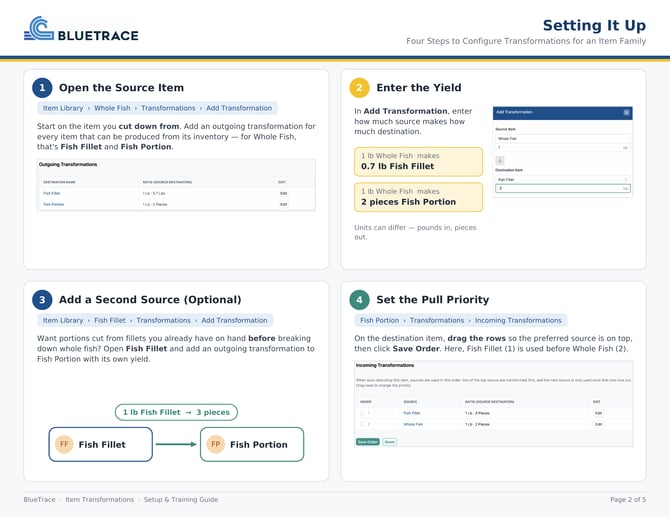
- Open the source item. Click into the item you cut down from, such as Whole Fish. Add an outgoing transformation for each item that can be made from its inventory, such as Fish Fillet and Fish Portion.
- Enter your yield. For each outgoing transformation, enter how much of the new item one unit of the source makes. For example, 1 lb of Whole Fish makes 0.7 lb of Fish Fillet, and 1 lb of Whole Fish makes one 8 oz Fish Portion.
- Add more sources if needed. If you want Fish Portions cut from Fish Fillet you already have on hand before you use Whole Fish, open Fish Fillet and add its own outgoing transformation to Fish Portion. For example, 1 lb of Fish Fillet makes two 8 oz Fish Portions.
- Set the priority. Open the item being made (here, Fish Portion) and click Transformations. Scroll down to Incoming Transformations, drag the rows into the order you want, and click Save Order.
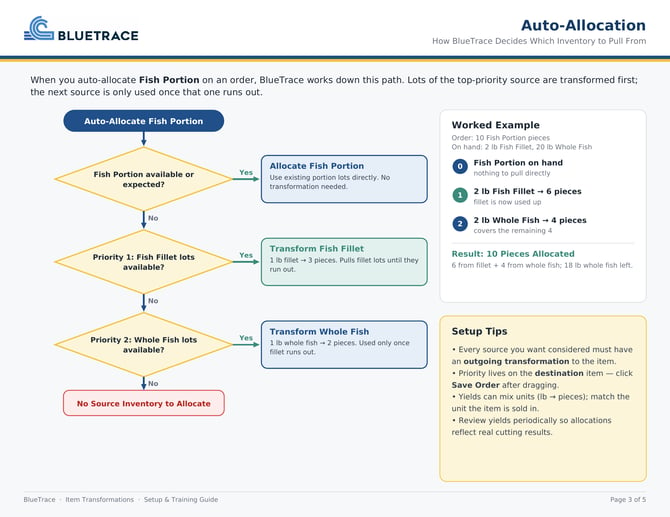
- Let auto-allocation do the rest. When you auto-allocate, BlueTrace transforms lots from the top source first and moves to the next source only when that one runs out. In this example, if no Fish Portion inventory is available or expected, BlueTrace pulls from Fish Fillet first, then from Whole Fish once the fillet is used up.
Setting Up Substitutions
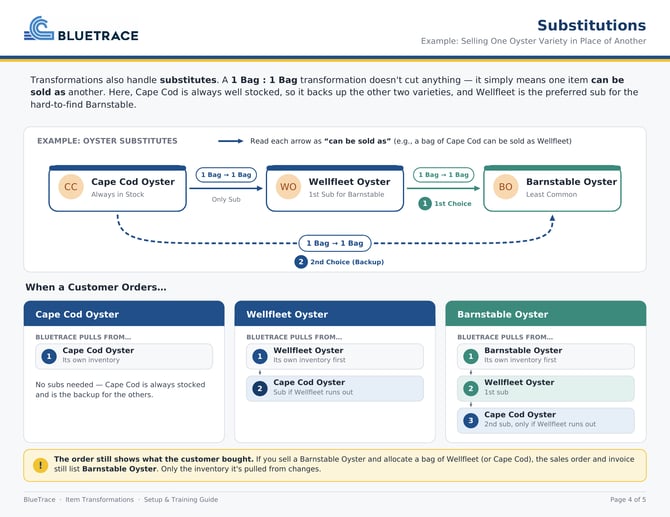
You can also use transformations to sell one item in place of another, such as substituting one oyster variety for another. A substitution uses a 1 Bag : 1 Bag ratio, so nothing is cut or lost. It just tells BlueTrace that one item can be sold as another.
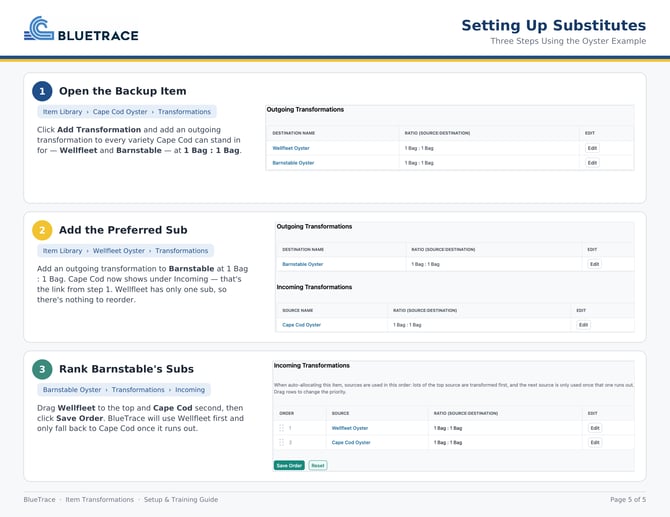
In this example, Cape Cod Oysters are always well stocked, so they can back up both Wellfleet and Barnstable. Barnstable is the hardest to find, so Wellfleet is its first choice for a substitute and Cape Cod is its second.
- Open the backup item. Click into Cape Cod Oyster and add an outgoing transformation to each variety it can stand in for, Wellfleet Oyster and Barnstable Oyster, at 1 Bag : 1 Bag.
- Add your preferred substitute. Click into Wellfleet Oyster and add an outgoing transformation to Barnstable Oyster at 1 Bag : 1 Bag.
- Rank the substitutes. Open Barnstable Oyster and click Transformations. Scroll down to Incoming Transformations, drag Wellfleet Oyster to the top and Cape Cod Oyster below it, then click Save Order.
When you auto-allocate a Barnstable Oyster, BlueTrace uses Barnstable inventory first. If none is available, it pulls from Wellfleet, and it moves to Cape Cod only once Wellfleet runs out.
Note: The sales order and invoice always show the item the customer bought. If you sell a Barnstable Oyster and fill it with a bag of Wellfleet, the order and invoice still say Barnstable Oyster. Only the inventory it’s pulled from changes.
If you need help setting these up, reach out to help@blue-trace.com.